Google Wallet Setup on Android and Apple Devices
A practical guide to setting up Google Wallet on Android and Apple devices for modern payments.
Android devices setup
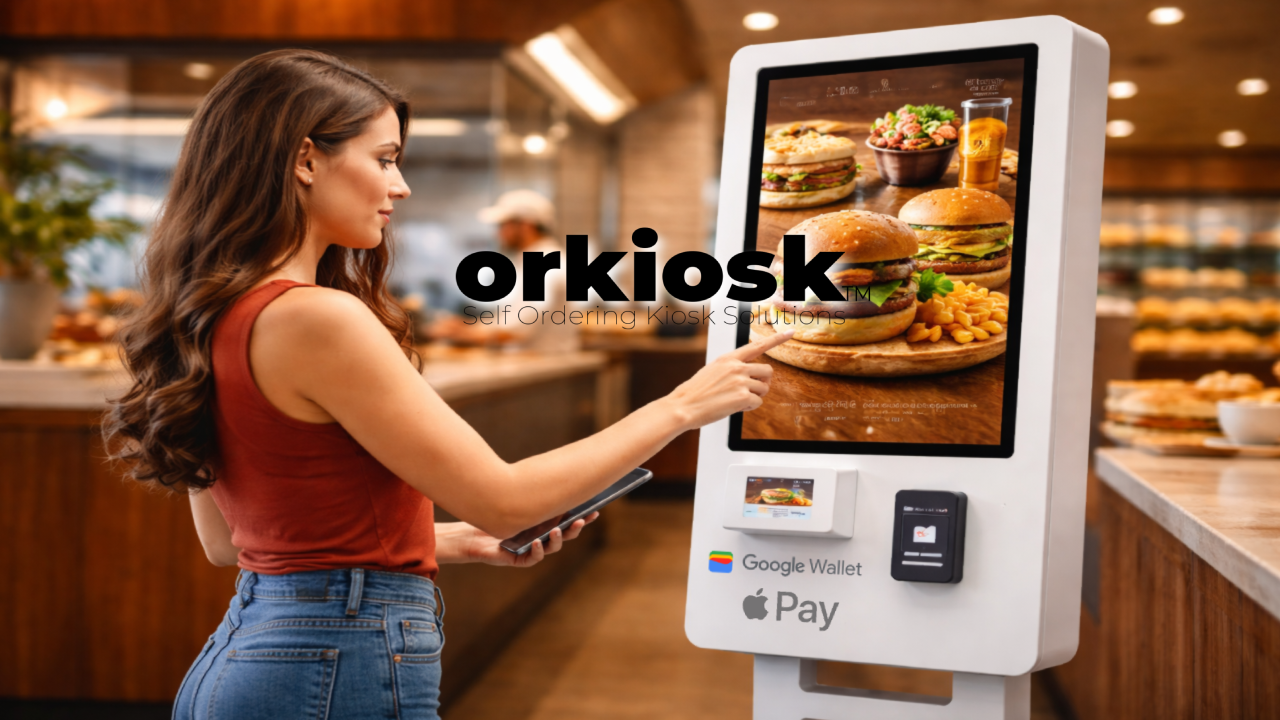
At Orkiosk, we support digital payments like Google Wallet on self-service kiosks to deliver fast, secure, frictionless checkout experiences in restaurants, including Puerto Rico.
Step 1: Open the Google Play Store on your Android device.
Step 2: Search for “Google Wallet” and select the official app.
Step 3: Tap “Download” and then “Install” to complete setup.
Step 4: Open Google Wallet from your home screen.
Step 5: Sign in with your Google account (or create one if needed).
Step 6: Go to settings and add payment methods such as debit or credit cards.
Step 7: Enable device security (screen lock and/or biometrics) to protect transactions.
Step 8: Explore additional features like sending/receiving money and managing cards and passes.
Apple devices setup
Step 1: On iPhone or iPad, open the App Store.
Step 2: Search for “Google Wallet,” then download and install the app. --Step 11: Open the app and sign in with your Google account.
Step 3: Add your cards in settings for quick and secure payments.
Step 4: Turn on Face ID or Touch ID (if available) to protect your financial data.
Step 5: Explore features like spending insights and integrations with other apps.
Once set up, you’ll be ready for fast, secure payments, including at compatible Orkiosk kiosks.
At Orkiosk, we keep sharing practical guides and tech insights to help restaurants modernize payment experiences. Explore our content and discover how our ecosystem can transform the way guests order and pay.
Comments (0)
Loading comments...
Did you like this article? Share it with others
Recommended posts
Self-Service Technology
Customer experience begins at the kiosk
How self-service kiosks improve the customer experience from the very first interaction in modern restaurants.
Trends & Innovation
How AI Transforms the Restaurant Experience
Artificial intelligence is revolutionizing the restaurant industry. Discover how Orkiosk integrates AI into its solutions to improve efficiency, personalize experiences, and increase profitability.
Business Optimization & Growth
Frictionless restaurant productivity
How to improve throughput by removing friction with self-service, digital payments, and automation inside the Orkiosk ecosystem.